Your first custom agent
This walks one build end to end on the real product: a small agent that answers every message with a limerick. It needs no tools and no accounts, which keeps the walkthrough short — the same conversation carries an agent that reads a CRM or files pull requests; it just has more to ask about along the way.
1. Start the builder
Sign in to the web UI, open New session, and pick Agent Builder. It appears in the picker only for the people named when the builder was turned on. Leave the message empty — the workshop page is where you say what you want — and press Open UI.
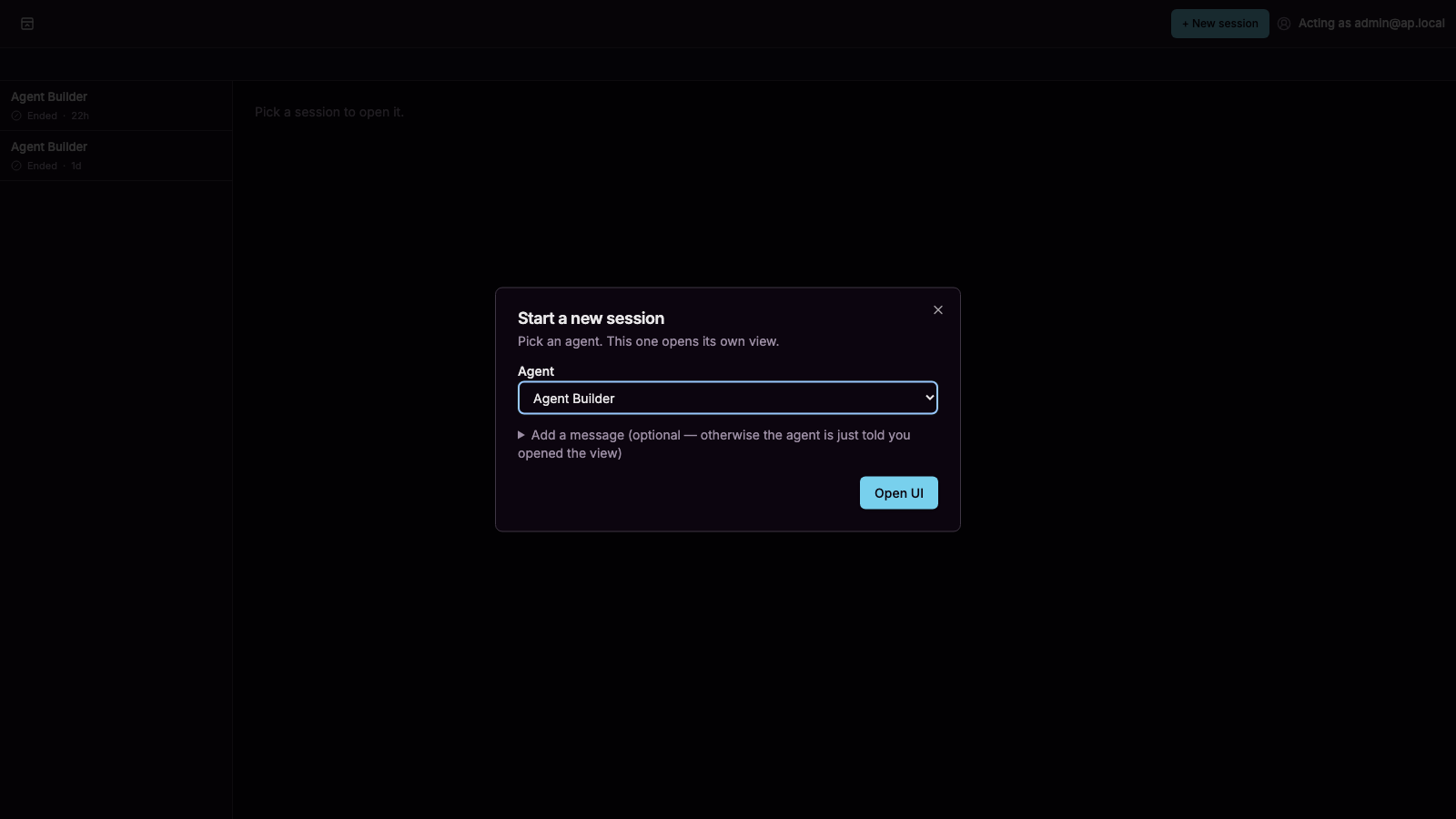
2. Describe the agent
The page opens on the Intake stage with a single form. Say what the agent should do, who it is for, and where it will run — in your words, not a schema:
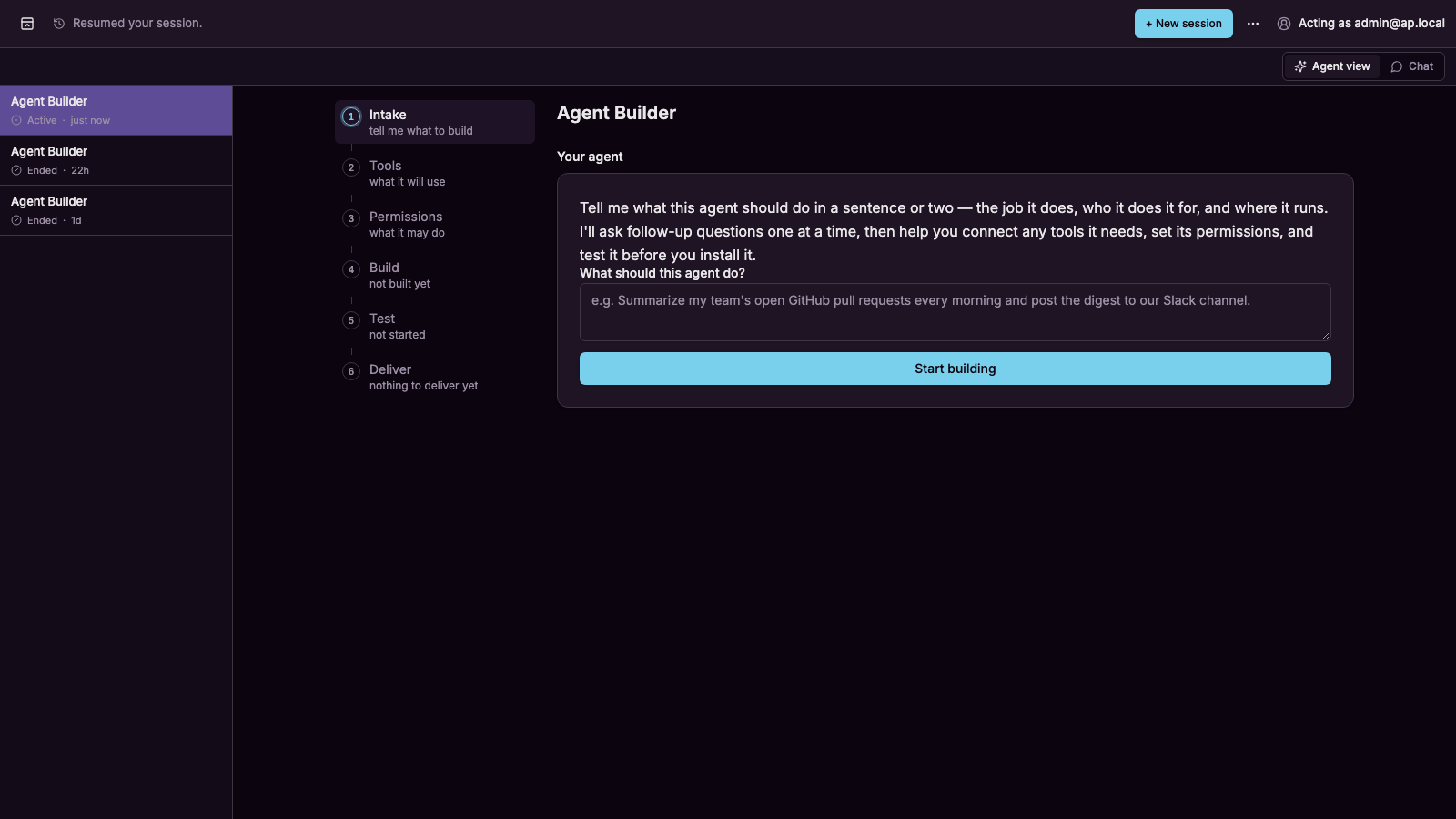
I want a small agent for my team: it replies to any message with a short, friendly limerick about it. It needs no tools and no accounts, only we will use it, in chat.
Press Start building. The builder restates what it understood, records what is already settled under What we've settled, and asks about what is not — one question at a time, on the page:
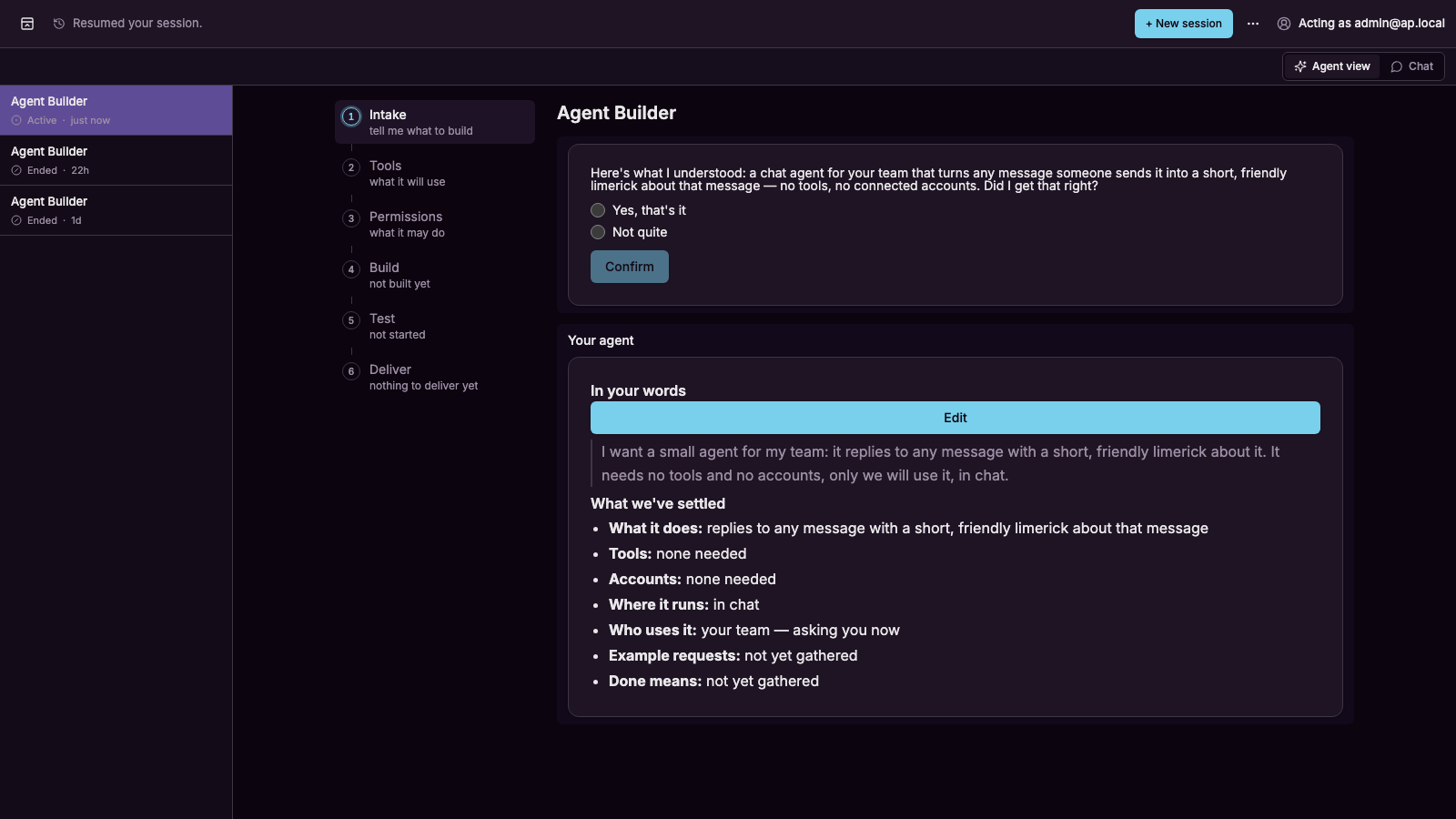
Answer on the page or in the chat. Your description stays pinned under In your words with an Edit button; changing it later revises only the facts that depended on the old words, and the interview continues from where it was.
3. Approve the stage
Before the builder changes anything in the draft, it raises a card for the stage it is about to run. The card appears above the page (and in the conversation, under the Chat toggle) with what the stage will do, who may approve it, and Approve / Deny. Approving it covers every change in that stage — the builder can apply, fix, and re-apply without asking again. A stage it did not plan for raises a fresh card.
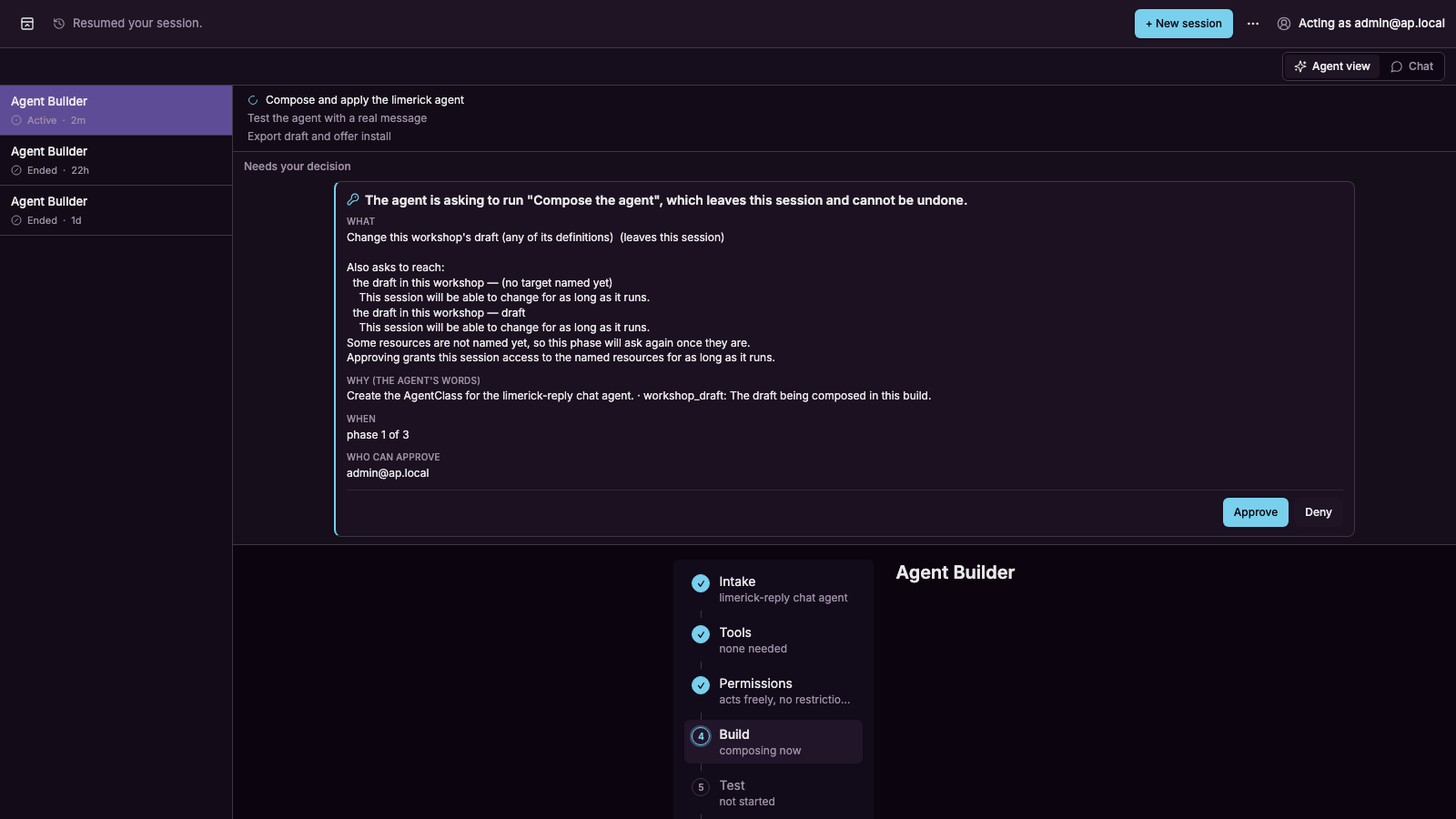
For an agent with no tools, the Tools and Permissions stages are quick: the builder records that nothing external is needed and that the agent's only action is to reply. For an agent that reaches a service, this is where it finds the connector, tries it, and asks you what the agent may do on its own and what it must ask about first. The rail on the left shows one stage's panels at a time and follows the builder; a finished stage stays clickable, so you can look back at what was settled:
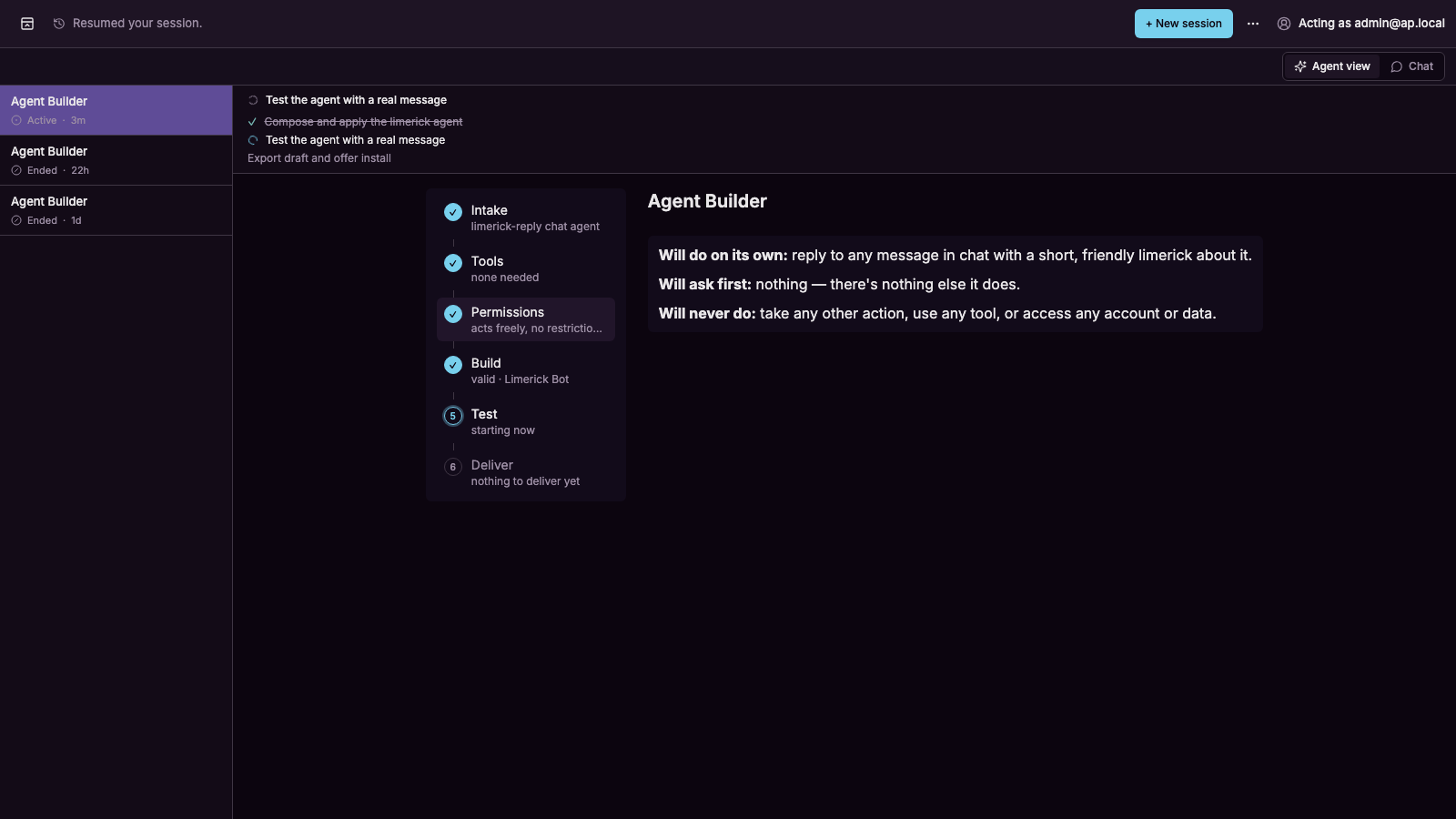
4. Watch it build
Build composes the agent from everything gathered, applies it inside the workshop, and keeps fixing it until the platform reports it valid. You see it in the plan strip at the top of the page and in the rail, where the Build step reads valid with the agent's name once the platform has accepted it. For an agent that uses tools this is also where the builder goes back and forth with the validator until every reference resolves.
5. Test it live
Test puts a real session of the new agent on the page. Press the card's start button — Start the test, or whatever the builder chose to call it — and a chat opens right there; the builder watches what the agent actually does and keeps the test card current — running since when, waiting on you, ended:
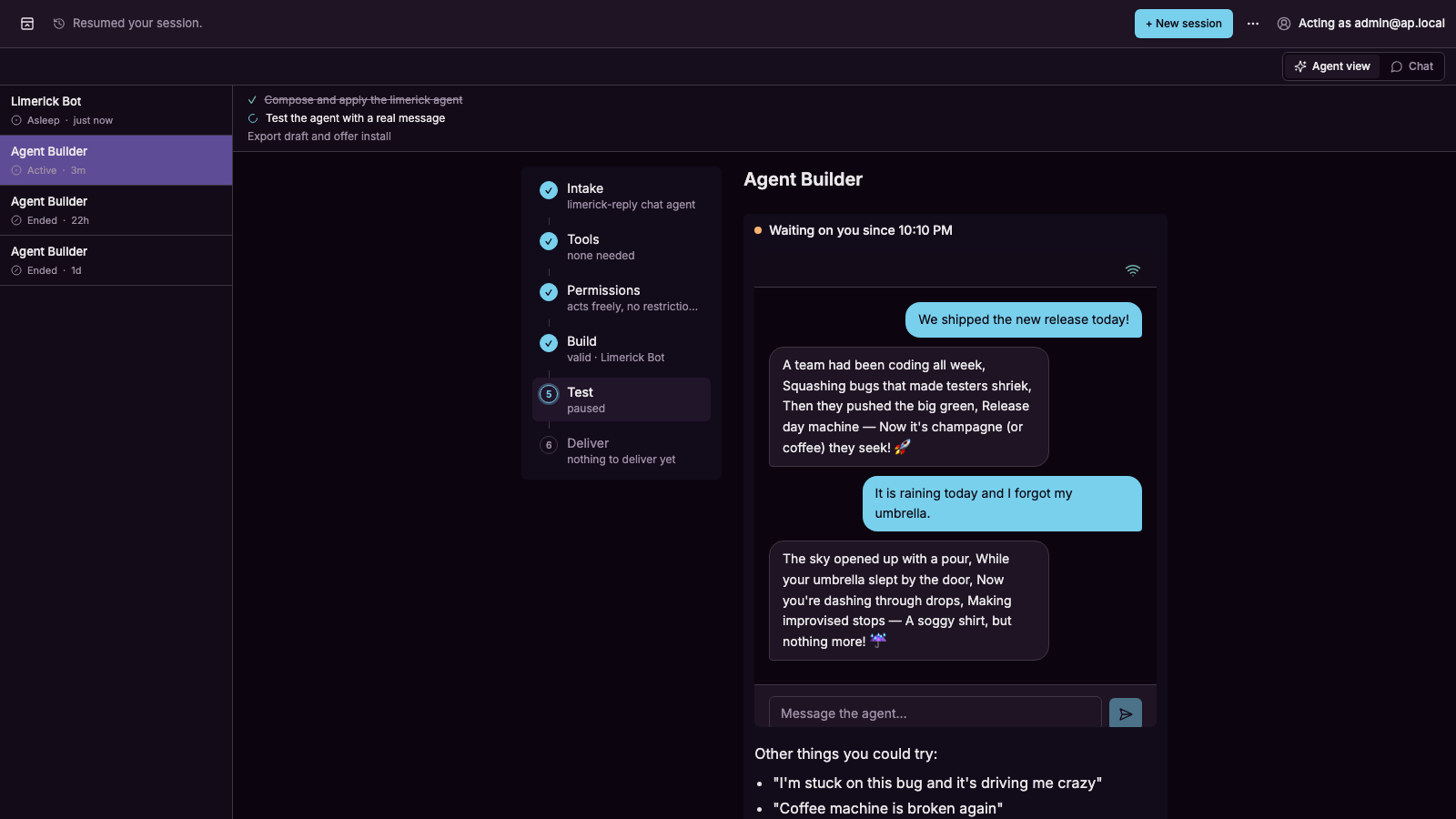
Say something to it. When you have seen enough, press Done testing — or just say so in the chat; the buttons on the card are the builder's, and it takes the words the same way. It then reads the test's log — the tool calls and results, not the agent's prose — tells you what it did, and asks whether that looked right. If it did not, say what you expected instead; the builder routes the fix back to the stage that owns it, and you test again.
6. Keep the draft, or install it
Deliver saves a portable copy of exactly what you tested and puts it on the page as a download, with three choices:
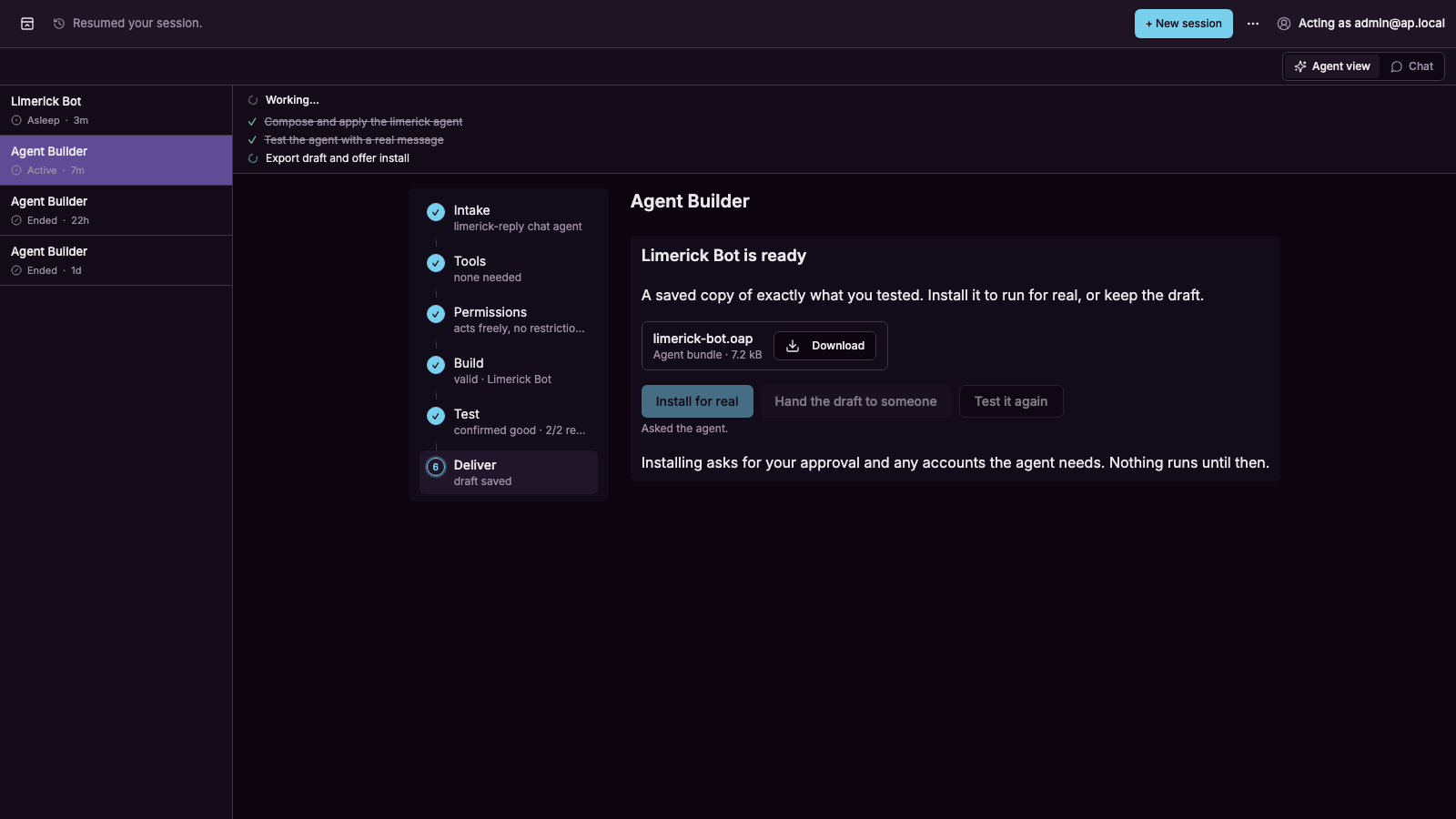
- Install for real — asks a platform admin to install it. Nothing runs until they say yes; you are told when it is live.
- Hand the draft to someone — the download is the whole agent, minus anything of your own accounts. Whoever receives it can ask for it to be installed.
- Test it again — back to the test stage with the same draft.
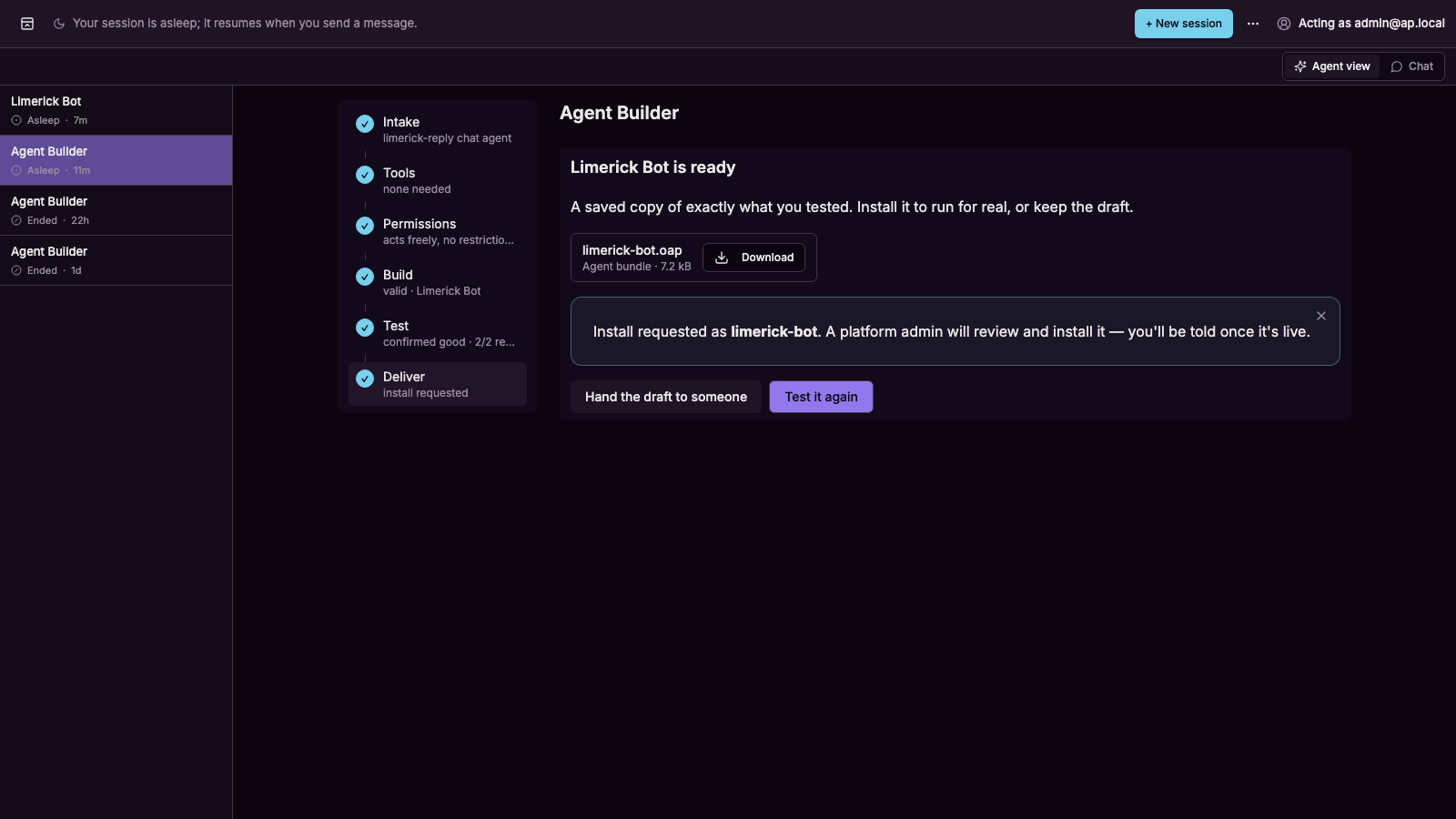
That is the whole build. The saved draft is yours whether or not it is ever installed; the admin's side of the story is in Testing, delivery, and install.